On the TV — what the kid sees
A calm, D-pad-friendly home on Google TV, built from only the channels you chose.
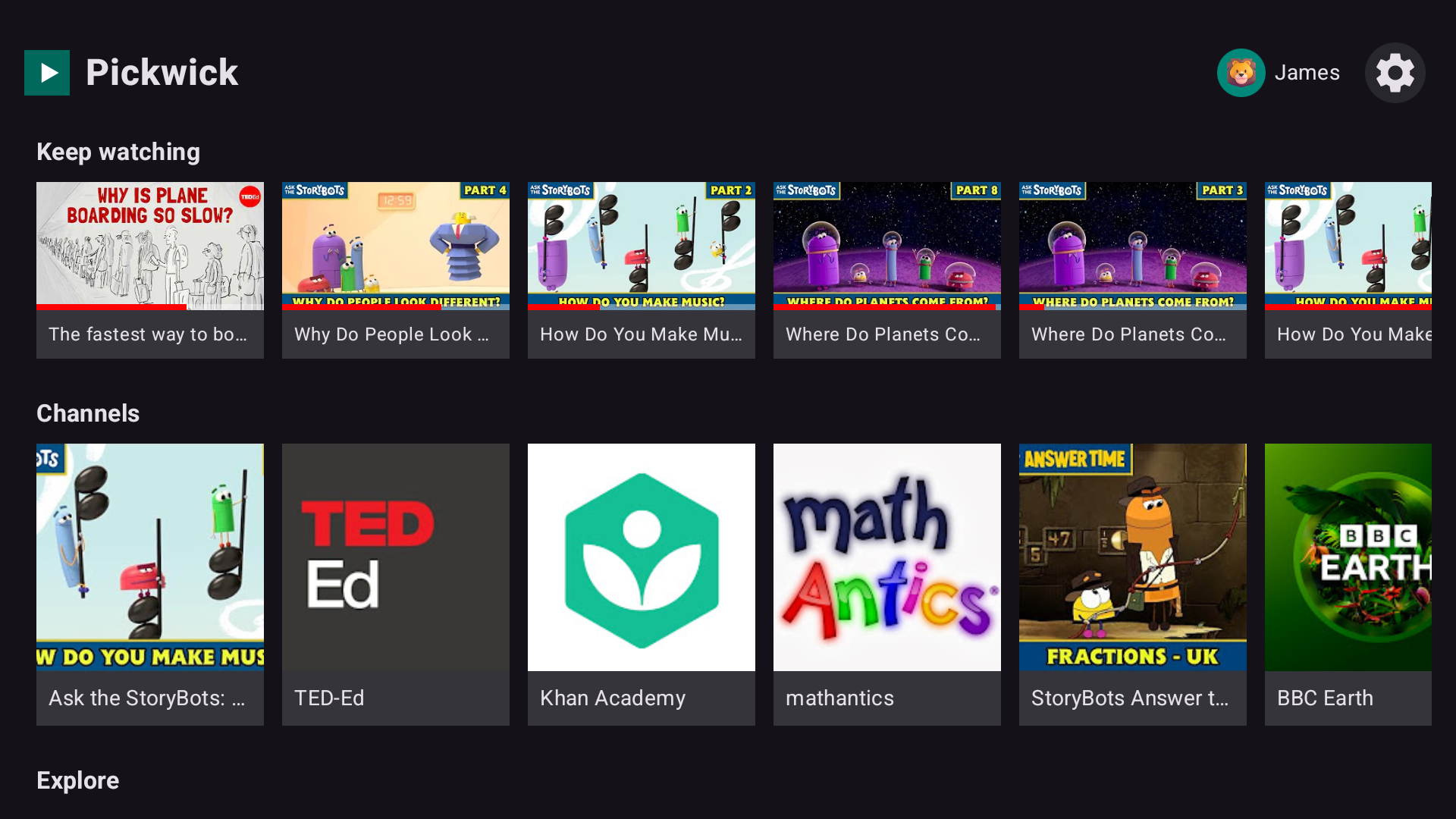
The kid's home
Pick up where they left off, then a shelf of parent-approved channels — and nothing else on the whole screen.
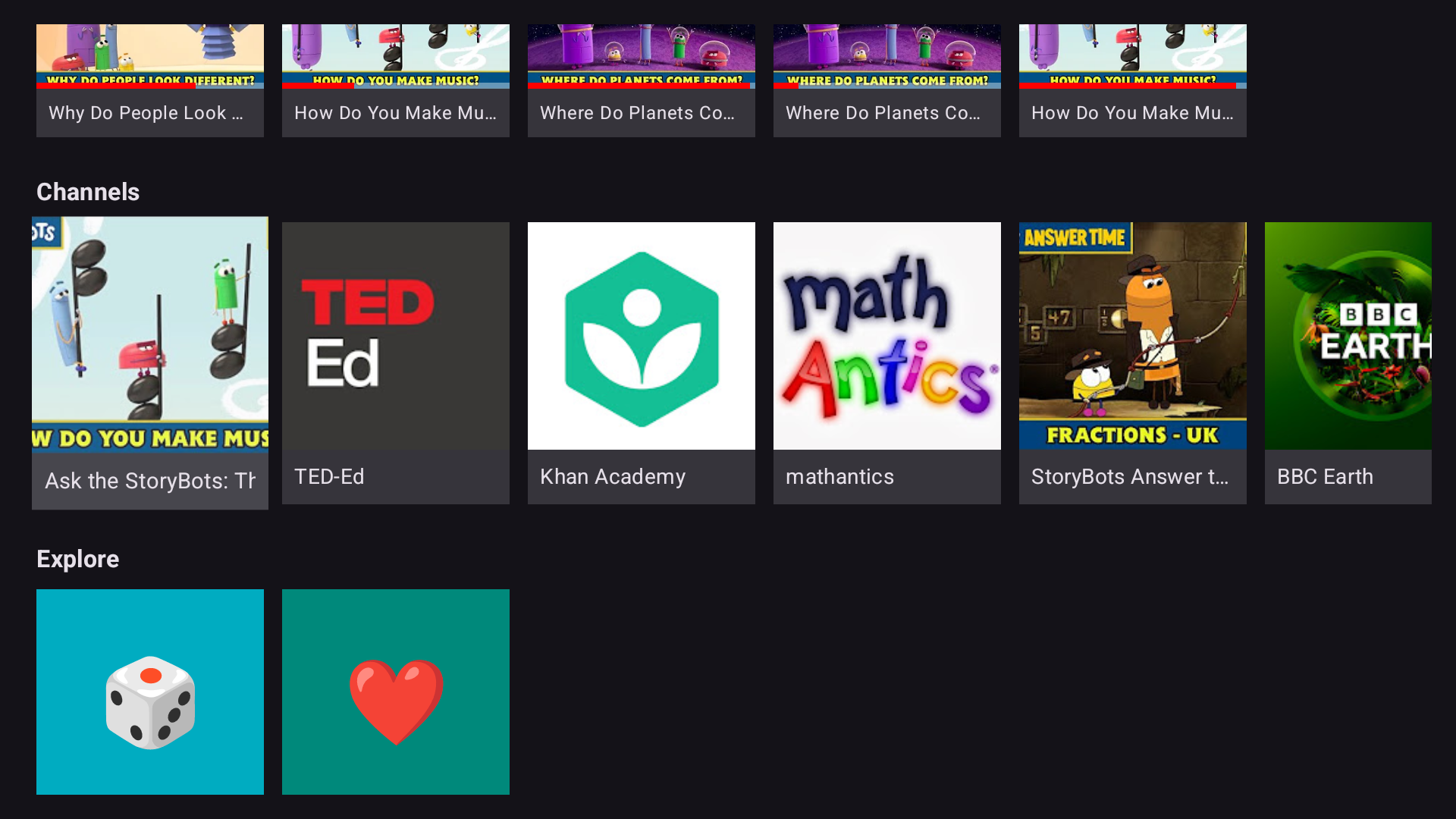
Browse & explore
Every allowed channel on one shelf, plus 🎲 Surprise me, ❤️ Favorites and 🕒 Watch later — each kid's own.
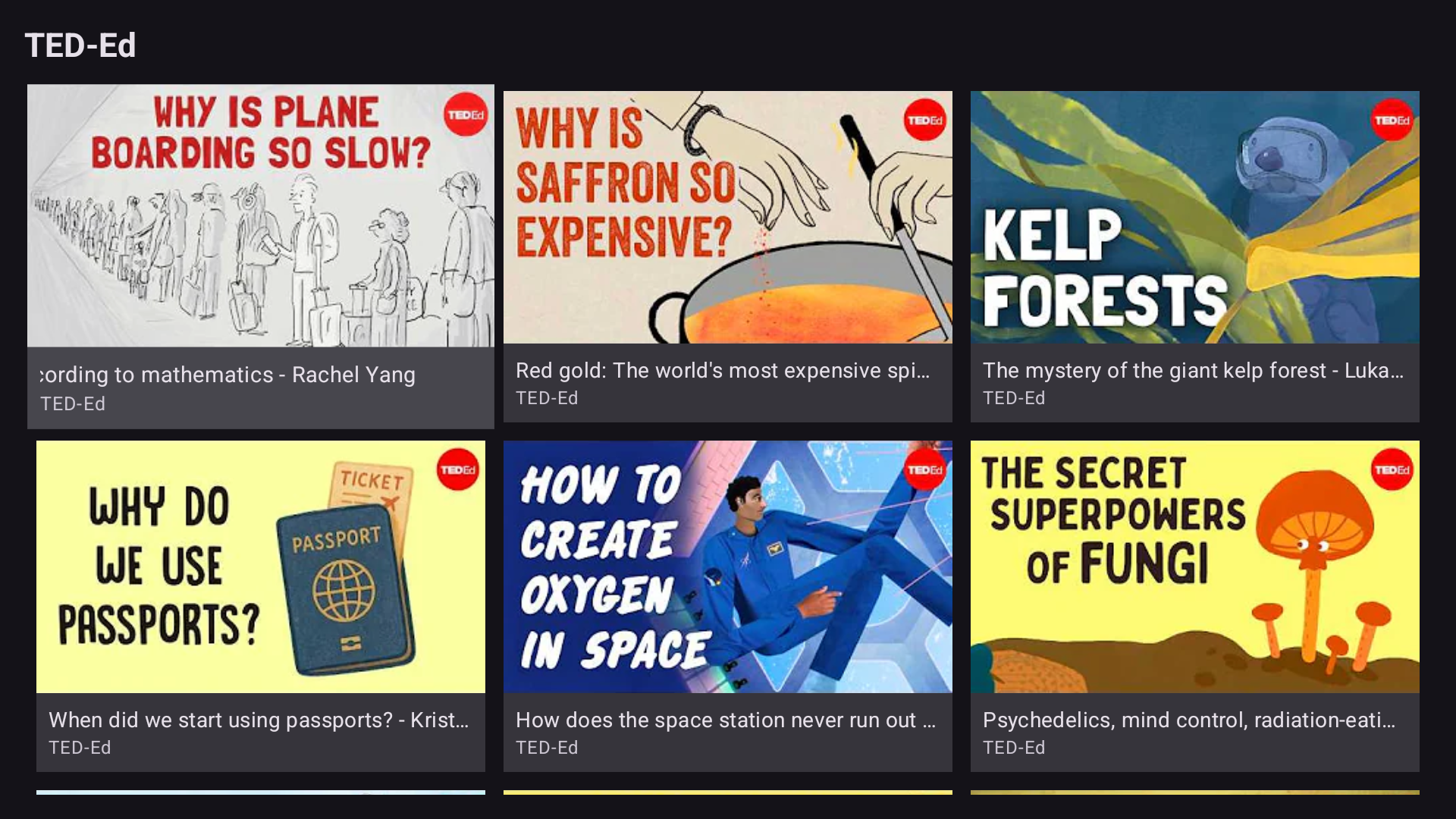
Inside a channel
Open a channel for a clean grid of its videos — nowhere to wander off to, nothing to escape into.
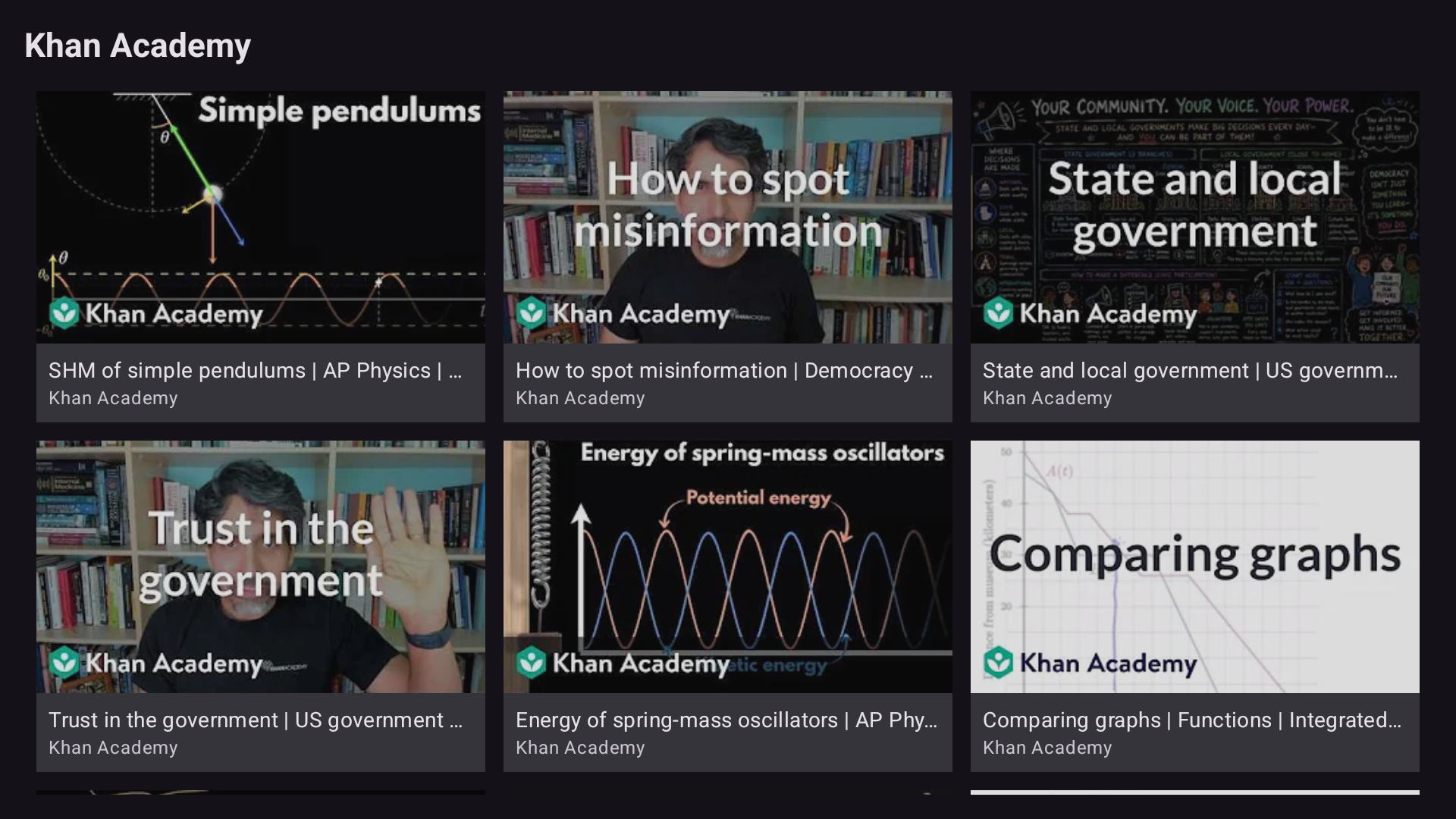
Curated, not recommended
Only uploads from channels a parent added — here, Khan Academy — ready to play fullscreen, ad-free.
On the parent's phone — what you set up
Everything is curated from the parent's phone, fingerprint- or PIN-gated. There is no server — it all stays on your devices.
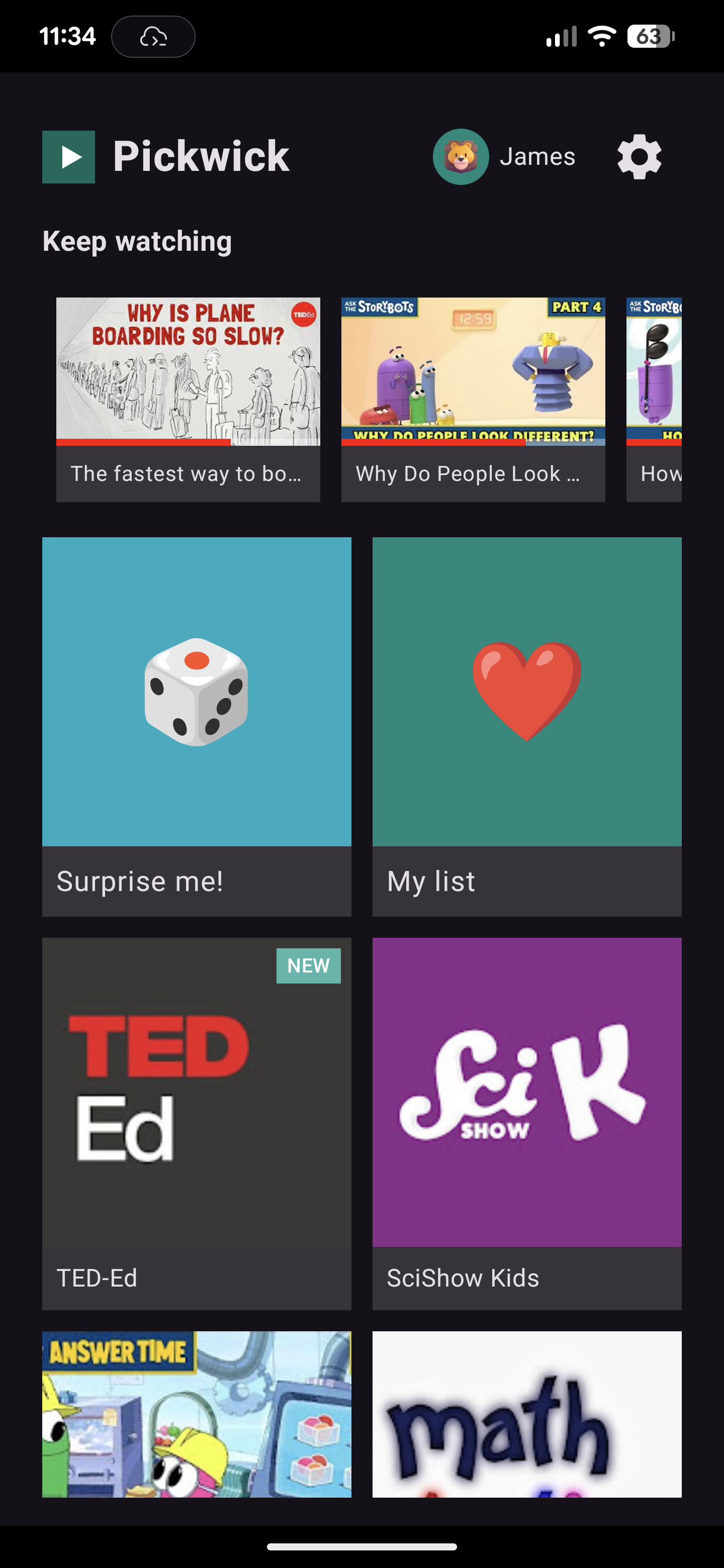
The kid's phone
The same calm home as the TV — on any Android phone or tablet.
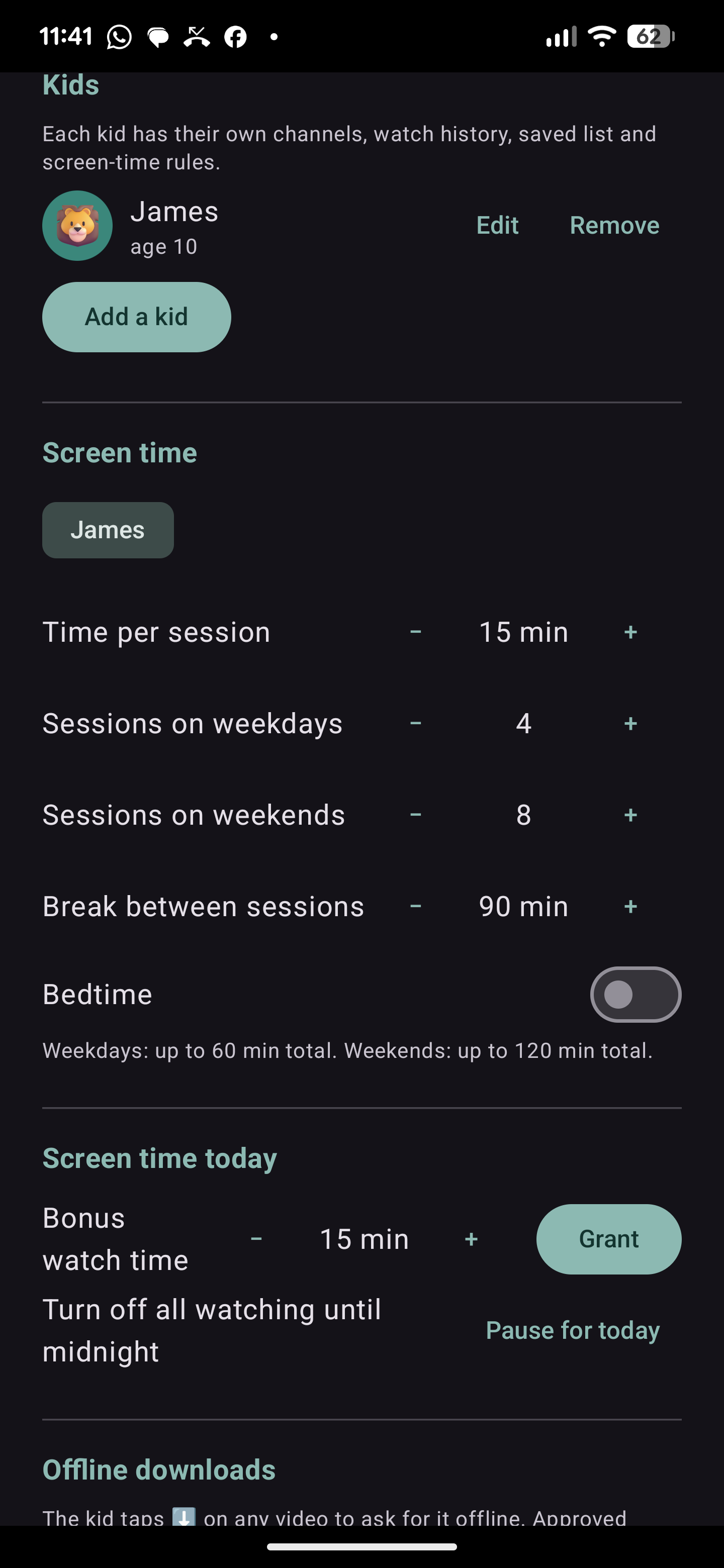
Kids & screen time
A profile per child, each with its own time per session, daily sessions, breaks and bedtime.
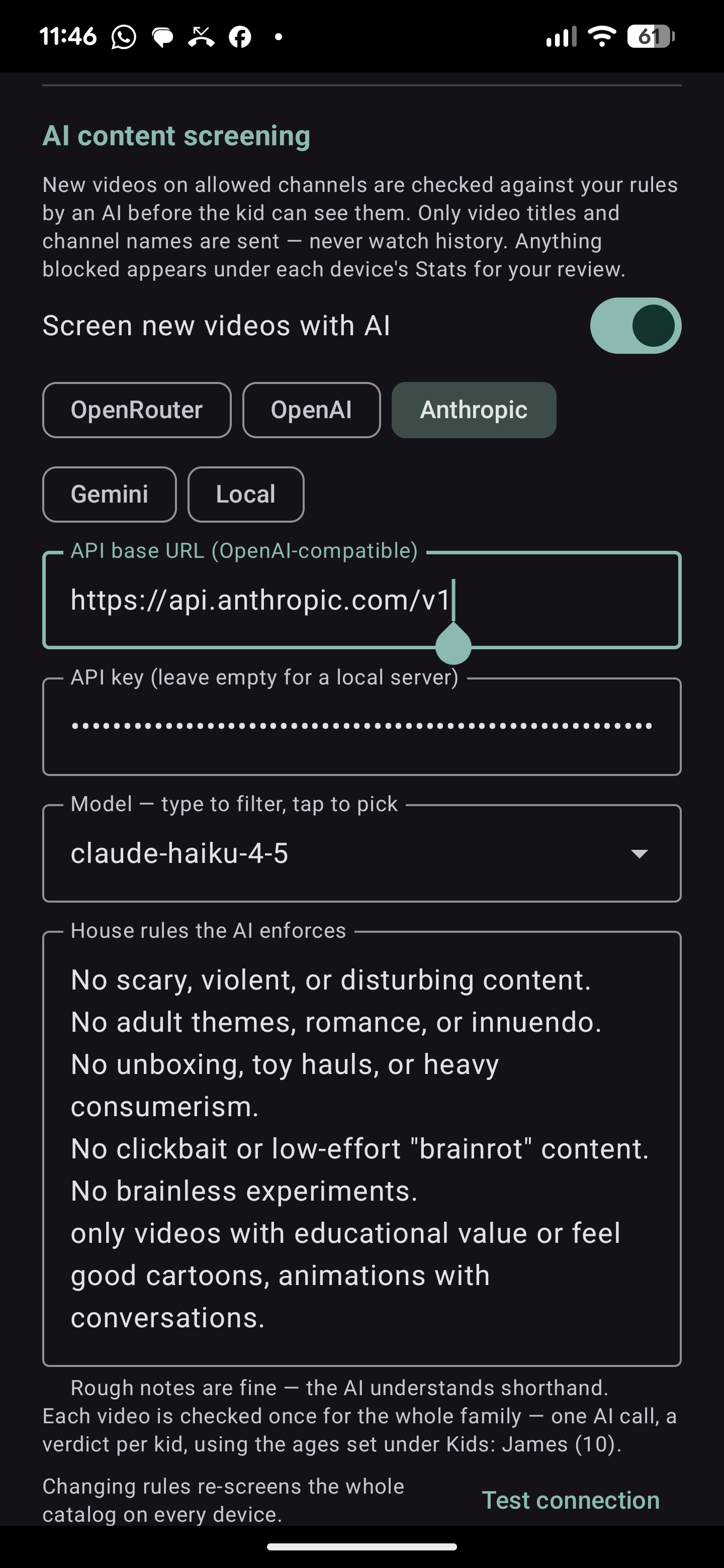
AI content screening
Optional — new uploads are checked against your own house rules first, and a deep check reads the description, tags and transcript before a video first plays. Watch history is never sent.
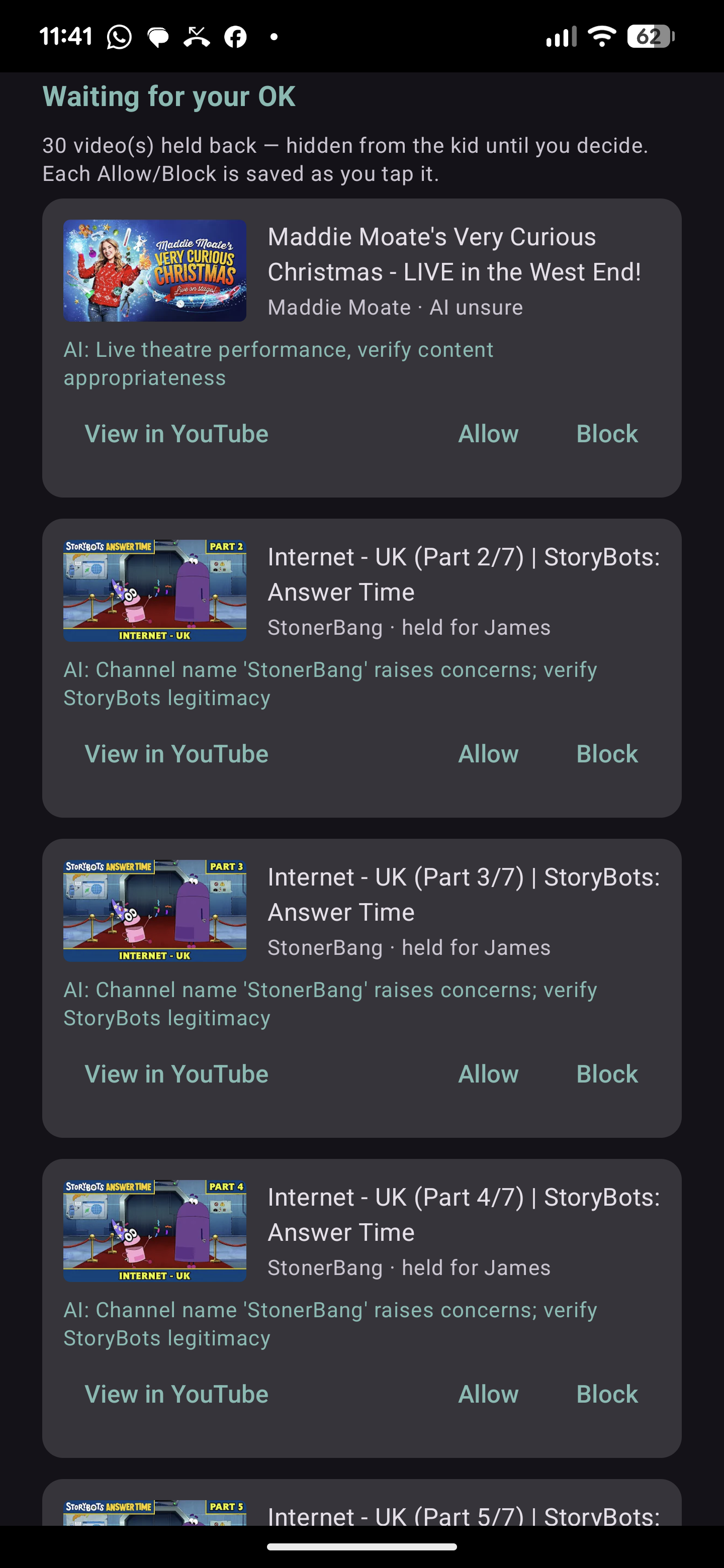
Your OK, first
Anything the AI isn't sure about waits here — you see why it paused, then Allow or Block it before your kid ever sees it.
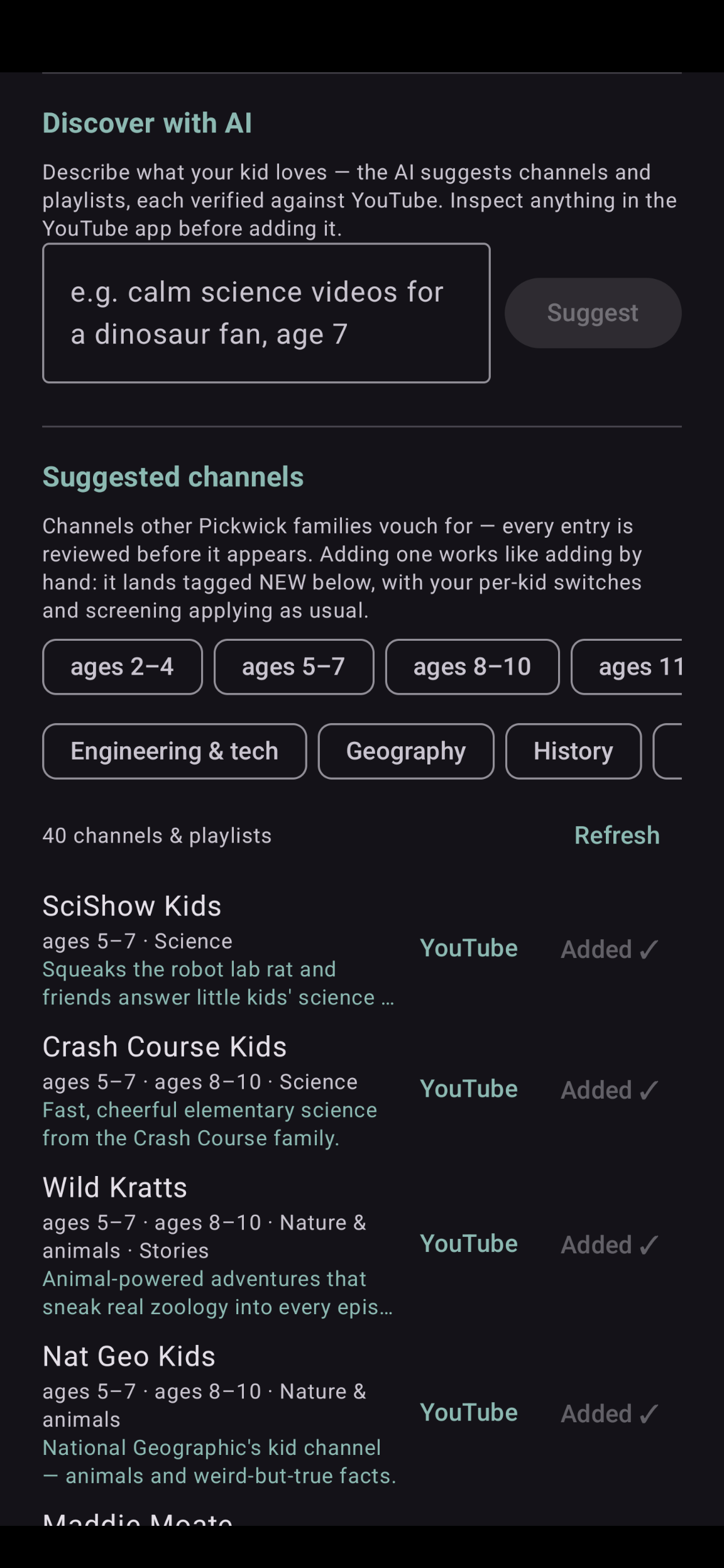
Discover with AI
Describe what your kid loves and get channel ideas verified on YouTube — plus a directory other families vouch for.
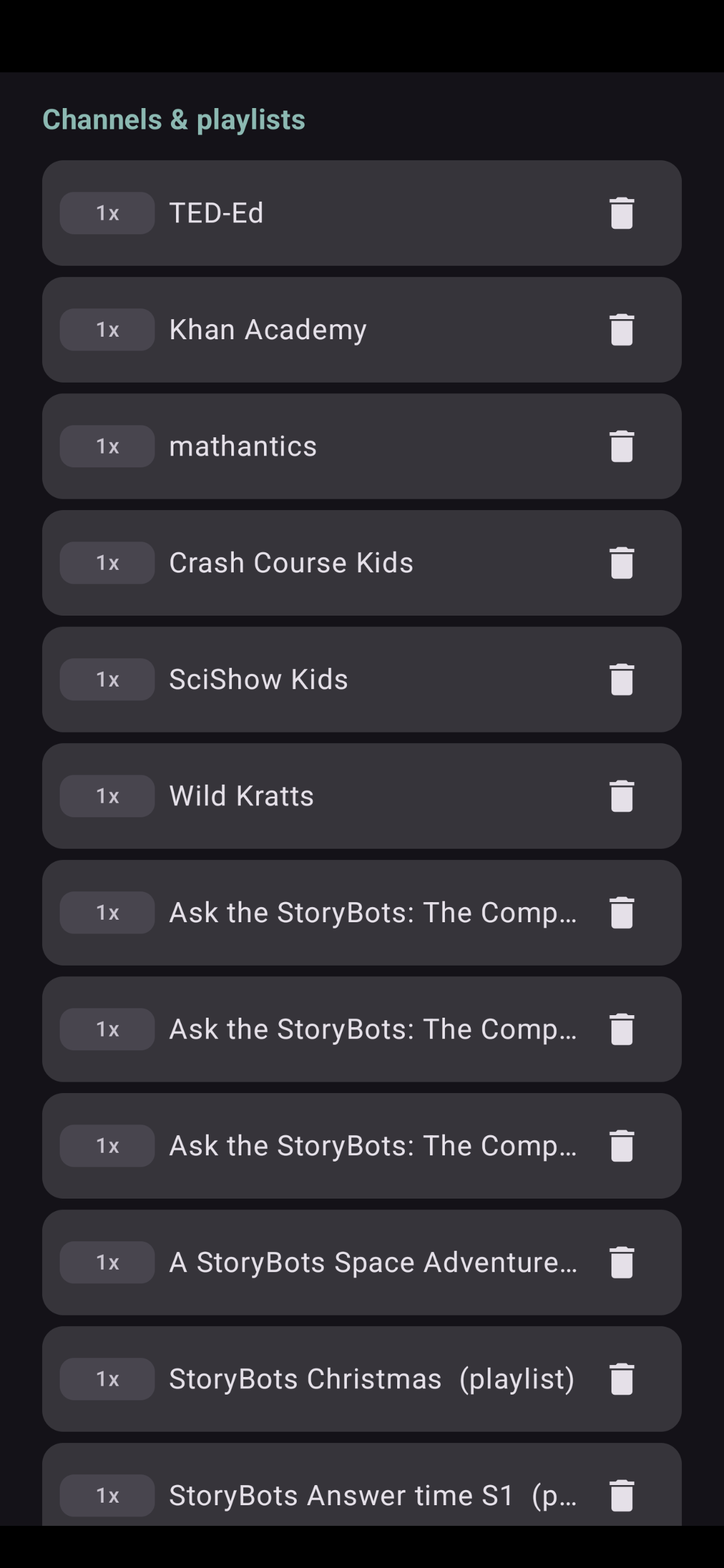
The channel list
Every allowed channel and playlist in one place, each with its own screen-time price tag.
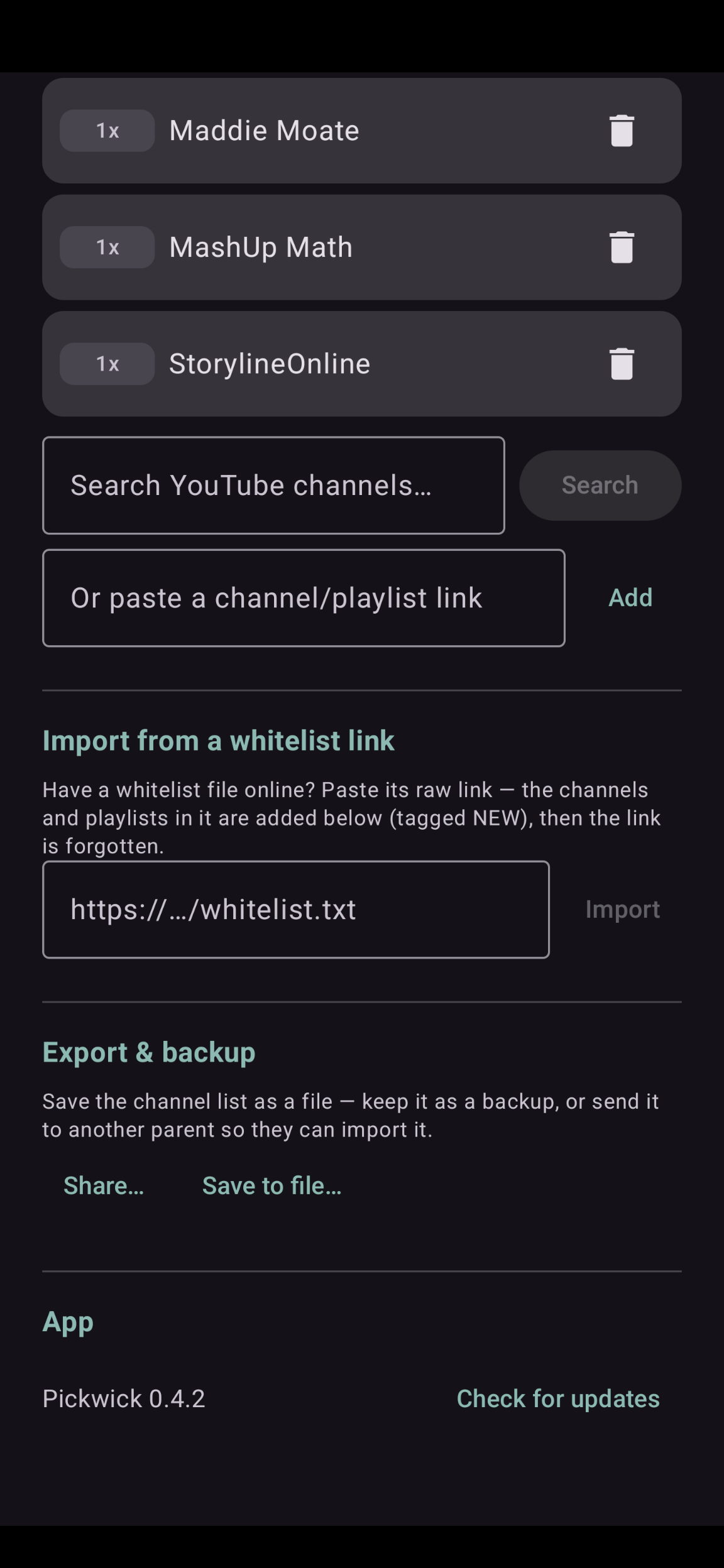
Add, import & share
Search YouTube, paste a link, import a whitelist file, or export yours to hand to another parent.
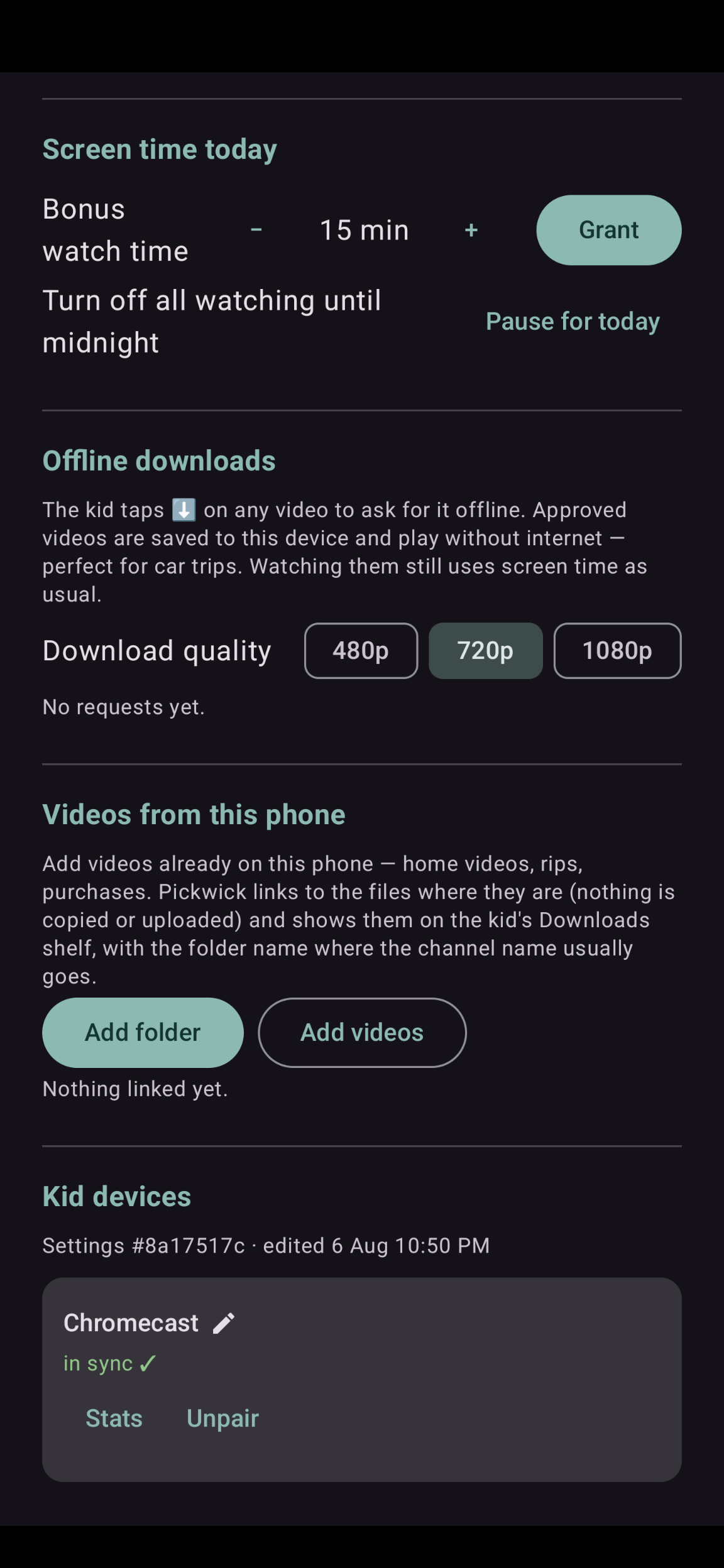
Downloads & devices
Grant bonus time, approve videos to watch offline, and keep every paired device in sync.